
BabyWish Chrome Extension: Add Gifts in One Click

Building a baby registry means adding dozens of items, from different shops, over several weeks. And every time it is the same loop: copy the link, switch tabs, open the registry, paste, wait, confirm, go back. Once is nothing. The thirtieth time is work.
There is now a Chrome extension that skips the whole loop: one click on the icon while you are on the product page, and the item is in your registry. With name, price, photo and shop link already filled in.
One click to add to your registry while you browse
With the Chrome extension it takes one click on the product page.
What it does, exactly
You click the BabyWish icon in your browser bar while looking at a product. The item appears in your registry with its name, price, photo and a link back to the shop. The category is recognised on its own, so the registry stays tidy without you sorting it later.
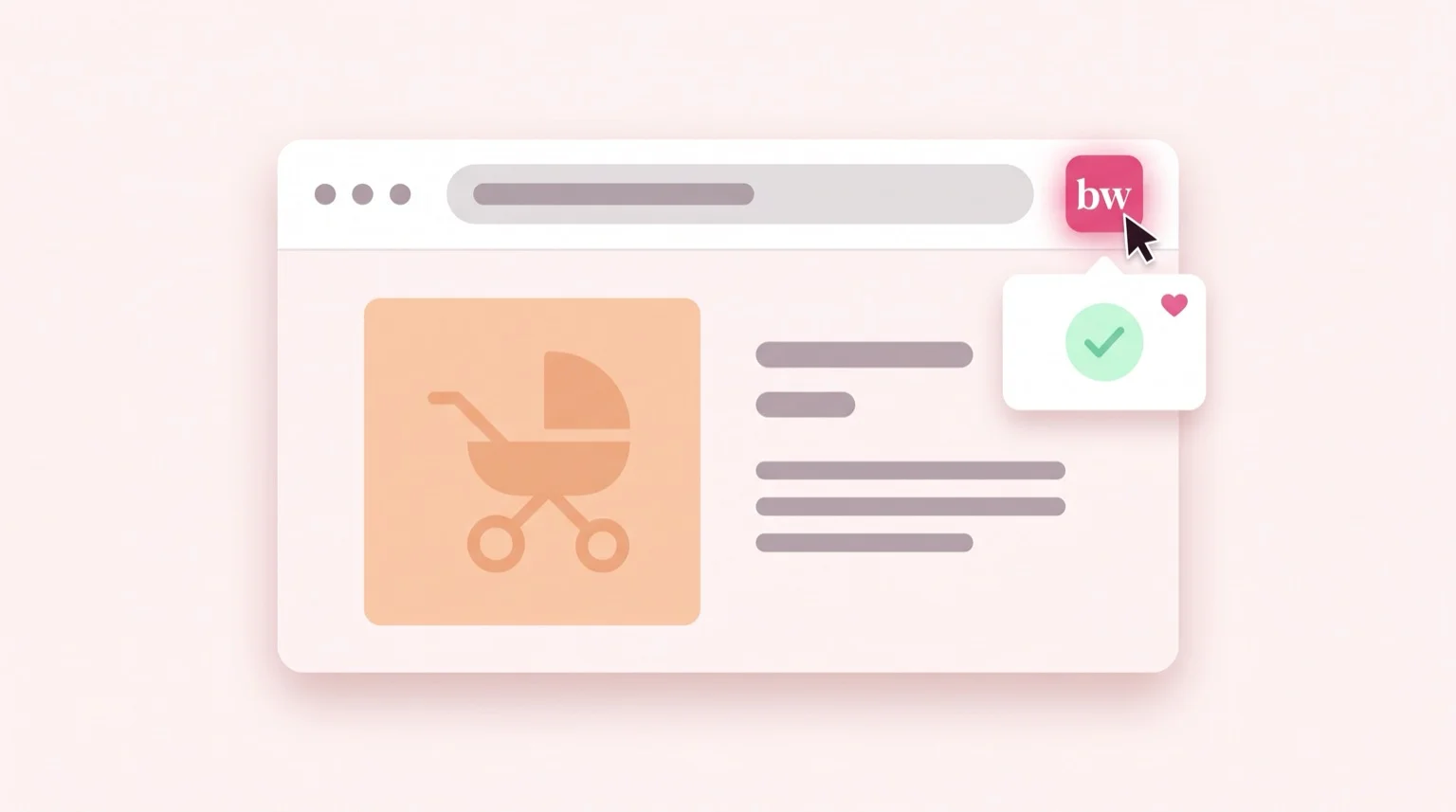
You type nothing and no form opens. A message on the page confirms which registry the item landed in — useful if you keep more than one, say one for the birth and one for the christening.
If that product is already in the registry we tell you and add nothing. It is one of the most common mistakes: the same item added twice from two different tabs, and then two guests each reserving one.
How to install it
You need a computer: Chrome on Android and Safari on iPhone do not allow extensions, so you cannot install it from a phone. We would rather say so here than let you find out halfway through. From a phone, though, there is another route to the same place: adding to your registry with the Share button.
- Open the BabyWish extension page on the Chrome Web Store and install it.
- Pin the icon to your browser bar: click the puzzle piece next to the address bar, then the pin next to BabyWish.
- Sign in to babywish.app once. From then on the extension recognises your session and asks nothing more.
One click to add to your registry while you browse
With the Chrome extension it takes one click on the product page.
On your first click, if you keep more than one registry, we ask which one to add to. After that choice, every addition is a single click.
Why it works where pasting a link does not
If you have tried pasting the link of an IKEA cot or a Decathlon product into the dashboard, you know it sometimes fails: it answers that it found no product. That is not a flaw in the registry, it is a choice those shops made.
When you paste a link, it is our server that goes and reads the page. Some shops block requests that do not come from a real browser, and our servers fall into that category. Your browser, on the other hand, is already showing the page: the extension reads from there, so on those shops it works.
In practice the extension widens the number of shops you can add from, not just the number of clicks you save. If there was something you wanted in your registry and could not get in, try again from there.
What it does not do
Installing an extension means granting a permission to a program, and the right question is always the same: what can it see?
Ours cannot see the sites you visit. It has no access to your history, it does not run in the background, it keeps no track of where you go. It reads the page only at the moment you click its icon: before that click it has access to nothing, and afterwards it keeps nothing.
We keep none of the page data. Only the item you see in your registry stays, with its link to the shop — the same information you would have typed by hand. No tracking and no ads, as with the rest of BabyWish.
Frequently asked questions
Do I need a BabyWish account to use the extension?
Yes, and it is free. The extension adds items to your account’s registry, so it has to know whose registry it is. If you are already signed in on babywish.app you do not sign in again: the extension recognises the site’s session.
Does it work on a phone?
The extension does not, and that is not our choice: Chrome on Android and Safari on iPhone do not allow extensions, so you need a computer to install it. But from a phone there is a route that gets you to the same place: on Android you install BabyWish, then the shop’s Share button is all it takes and the item lands in your registry with its name, price and photo. On iPhone iOS does not allow it yet, and there the way in stays pasting the product link into your dashboard.
Does it work on every online shop?
On most of them, yes. The extension reads the data a shop publishes for search engines: name, price and photo. If a page publishes none of it we tell you straight away, instead of putting an empty item in your registry.
Can the extension see the sites I visit?
No. It reads the page only at the moment you click its icon, and nothing else: no history, no tracking, no ads. We keep none of the page data — only the item stays, in your registry.
If I add the same product twice, do I get a duplicate?
No. If that product is already in the registry we tell you and add nothing. If you genuinely want two, change the item’s quantity from the dashboard: that is the right way to tell your guests.
Where to start
If you have not opened your registry yet, start there: the baby registry guide explains how to set it up, andwhat to put in it saves you from starting on a blank page. The extension comes later, once the registry exists and needs filling — exactly when copy-paste starts to weigh.
One click to add to your registry while you browse
With the Chrome extension it takes one click on the product page.