
Add to Your Baby Registry From Your Phone
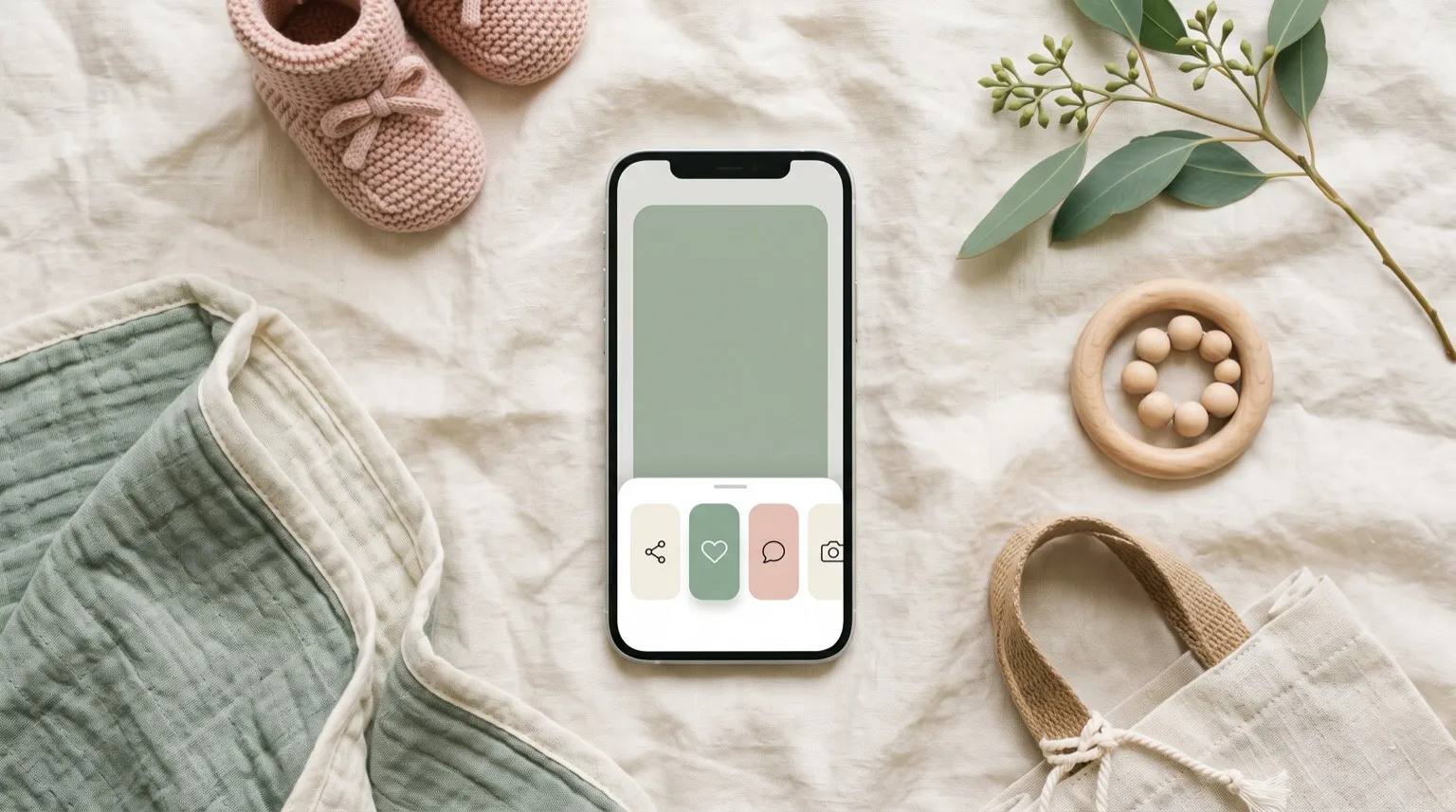
You are browsing a shop on your phone, you find the sleepsuit you like, and you want it in the registry. The usual route: copy the link, open BabyWish, paste, wait, confirm. Five steps for one babygrow.
Now it takes one. Tap the page’s Share button, choose BabyWish, and the item is in your registry with its name, price and photo already filled in. No copy-paste, no form.
It depends what you are holding
There is no single route, because phones do not allow the same things. Here is the one that applies to you.
On Android
Install BabyWish on your phone and the Share button is all you need, in any store.
Open this page in Chrome on Android to install it.
On a computer
The Chrome extension adds the product you are looking at in one click.
On iPhone
The Share sheet cannot open BabyWish yet — iOS does not allow it. Paste the product link into your registry instead, or borrow an Android phone.
Setting it up on Android
Once is enough — after that the Share button remembers BabyWish for good.
- Open babywish.app in Chrome on your phone and sign in.
- Accept the invitation to install the app that appears on your dashboard, just above your items, or use "Add to Home screen" from the Chrome menu.
- From any shop, tap Share and pick BabyWish from the list of apps.
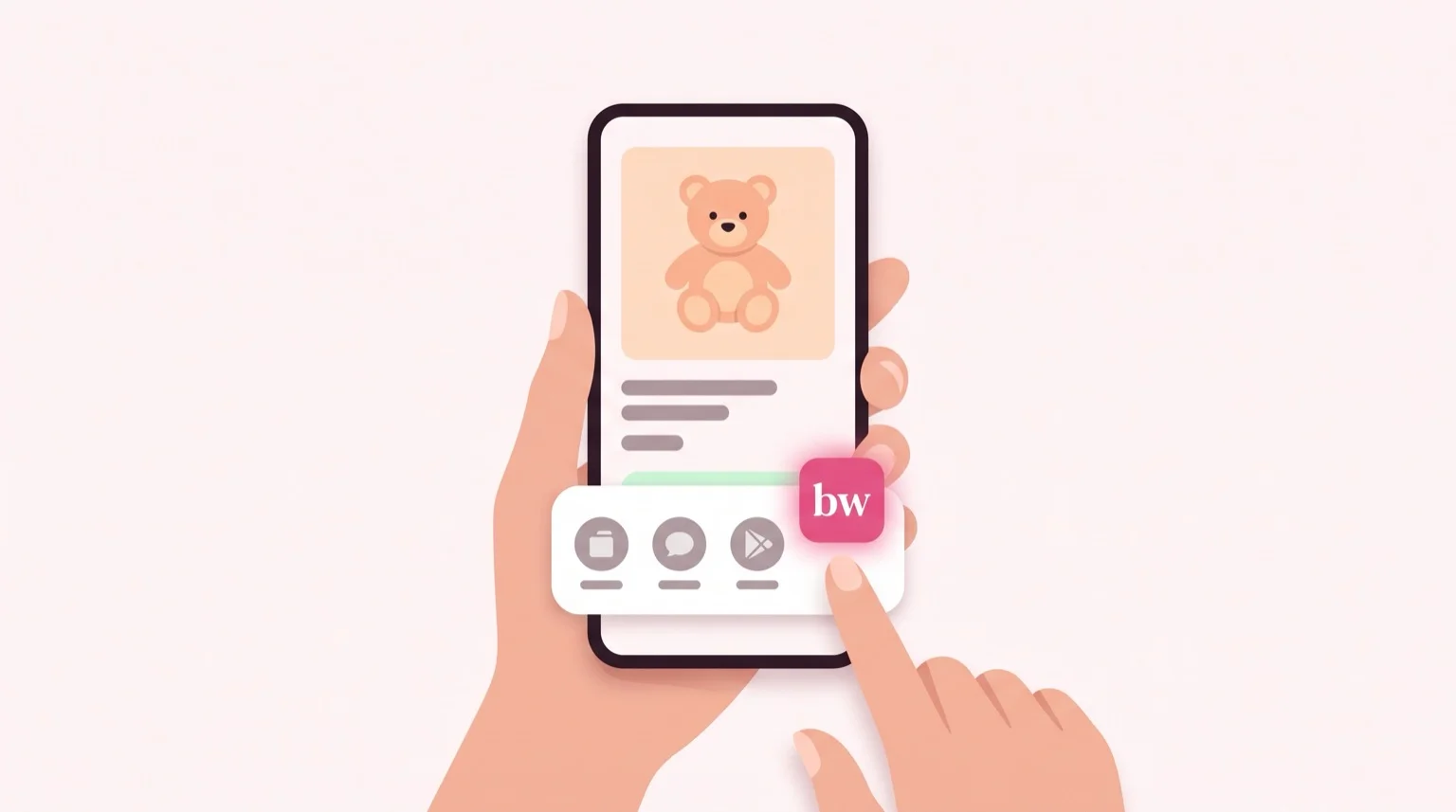
If BabyWish is not among the apps, the install did not finish: reopen the site and try step two again.
What happens when you share
We read the page from our server and take the name, price and image from it. If you have one registry, the item goes straight there and nothing is asked. If you have more than one — a birth list and a christening list, say — we ask where it belongs, with the most recent one already selected: an item cannot move between lists, so a question beats a mistake.
Some shops will not let us read their pages. When that happens we do not invent a half-empty item: we show you the form with what little we found, and you finish it in ten seconds. You never lose the link.
Frequently asked questions
Does it work on iPhone?
Not yet, and it is not our call: Safari on iOS does not let a website appear in the Share menu. On iPhone you can paste the product link into your registry, which works on most shops. If there is an Android phone in the house signed in to the same account, sharing works from that one.
Do I have to install an app from a store?
No. BabyWish installs from the browser, in two taps, and takes almost no space: the site itself becomes an icon. It does not go through the Play Store.
Why does it sometimes ask which list to use?
Because you have more than one. An item belongs to a single list and cannot move, so we would rather ask: the most recent list is already selected, and one tap confirms.
If I share the same product twice, do I get two?
No. We recognise the same product even when the link differs — the shortened links that shop apps produce all point to the same place. If you genuinely want two, change the item quantity.
What do you see of the pages I visit?
Only the ones you send us by tapping Share, one at a time. There is no access to your history, and the page is not kept: what remains is the item in your registry, with its link.